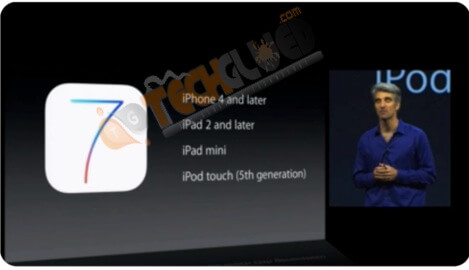
With the release of iOS 7 Beta 2 for developers, Apple has added the support of iPad/iPad Mini in the same iOS 7 Beta 2 version as well. This is the first time in history that Apple has added the support of iOS in second beta. Else Apple used to add the support of every compatible iDevice in the first Beta. This is strange, but true. Apple announced iOS 7 Beta 1 after showcasing it on June 10, 2013 at WWDC 13 and today Apple released iOS 7 Beta 2 for developers to continue the testing on the second beta version.
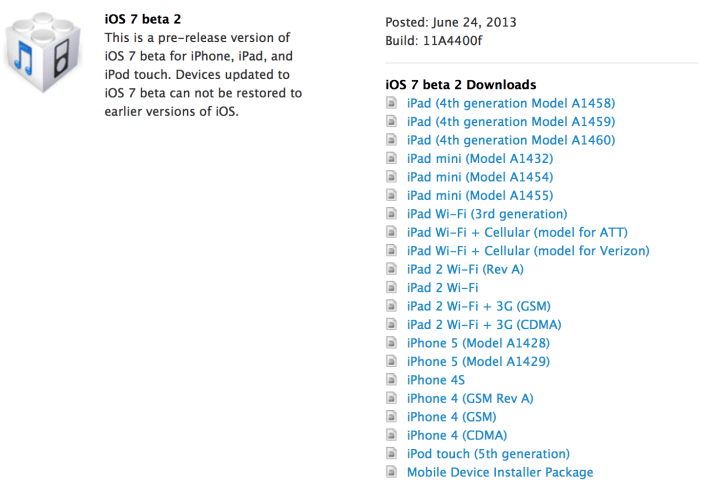
This iOS 7 Beta 2 version supports all iDevices other than iPhone 3GS and iPod Touch 4 because Apple dropped the support of these devices in iOS 7.
Below is the change log:
[toggle title_open=”Close Me” title_closed=”Open Me” hide=”yes” border=”yes” style=”default” excerpt_length=”0″ read_more_text=”Read More” read_less_text=”Read Less” include_excerpt_html=”no”]Notes and Known Issues
The following issues relate to using iOS SDK 7.0 to develop code.
AirDrop
Notes
“Contacts Only” support requires that:
You are logged into iCloud.
The sender and receiver have each other’s Apple ID email addresses in Contacts on their devices.
Known Issues
“Contact Only” currently requires that you have an active Internet connection.
Occasionally, AirDrop will exhibit unreliability in discovery and/or data transfer to peers over Wi-Fi.
The App Store should support the ability to find an app capable of opening a received document based on the document’s Uniform Type Identifier (UTI). Currently, just a blank screen is displayed.
AV Foundation
Notes
AVCaptureSession now uses your app’s AVAudioSession by default.
Known Issues
AVCaptureSession is unable to produce samples to its AVCaptureAudioDataOutput when the app is running in the background.
Calendar
Known Issues
Edits made to iCloud Calendar events off-device will not push to the device.
Workaround: Update the calendar manually or trigger a fetch by modifying an event on-device.
Car Display
Known Issues
Support for Car Display will be provided once compatible systems are available.
Core Animation
Notes
When the UIViewGroupOpacity key is not present, the default value is now YES. The default was previously NO.
This means that subviews of a transparent view will first be composited onto that transparent view, then the precomposited subtree will be drawn as a whole onto the background. A NO setting results in less expensive, but also less accurate, compositing: each view in the transparent subtree is composited onto what’s underneath it, according to the parent’s opacity, in the normal painter’s algorithm order.
Core Data
Known Issues
Moving data from a local sandbox to iCloud using migratePersistentStore causes a crash. Instead, manually migrate the data store by iterating over the objects in the local data store file.
Game Center
Known Issues
When adding new Apple IDs to Game Center, they must be added through the Game Center app and not Settings.
If you launch a Game Center app while not logged into Game Center, the Game Center login sheet may be unreadable.
Game Kit
Known Issues
The API for sending reminders is present but unimplemented in this seed.
The API for loading leaderboard sets might need to be called a second time for it to succeed.
iCloud
Notes
Activation Lock, a new feature of Find My iPhone, is turned on automatically when Find My iPhone is enabled on any device running iOS 7. Activation Lock requires users to enter their Apple ID and password to turn off Find My iPhone, sign out of iCloud, erase the device, or reactivate the device after an erase. It’s important to sign out of iCloud, or choose Settings > General > Erase All Content and Settings, before transferring a device to a new user to allow them to use the device.
Known Issues
Signing out of an iCloud account with Find My iPhone turned on requires you to enter your Apple ID password. However, in some cases, the keyboard does not appear.
Workaround: Double-tapping the home button will bring up the keyboard.
On rare occasions, users might experience difficulties setting up iCloud Keychain on some of their devices.
Workaround: A temporary Reset iCloud Keychain button is available in iCloud Settings > Account > Account Security.
After users change their iCloud Security Code to Simple or Complex, they will not be able to recover their keychain items from the secure backup.
Workaround: Change the country code field under Account Security so that the user can receive the SMS Verification Code to complete the recovery process.
Sometimes when creating a new Apple ID and choosing to use iCloud in Setup Assistant, iCloud will not be turned on.
Workround: Go to Settings/iCloud and sign in with your Apple ID.
iCloud Keychain users who set up an additional device will receive an approval request to the other devices with iCloud Keychain turned on. The approval request will not be displayed if their screens are off and the devices are idle.
Workaround: Wake up any peer device to accept the approval request.
Users signing out of iCloud by deleting their iCloud account, erasing all contents and settings, or erasing the device via Find My iPhone and signing back in will not be presented with the correct iCloud Keychain setup screens.
Workaround: Use the seed-only iCloud Keychain Reset button.
Users who have a single device with iCloud Keychain on will not be presented with the correct iCloud Keychain setup screens after restoring from a backup.
Workaround: Use the seed-only iCloud Keychain Reset button.
When setting up iCloud Keychain, many iCloud Security Code candidates will be rejected for being too weak.
Workaround: Choose a 4-digit iCloud Security Code that does not have an obvious pattern.
Restoring your device from the same device’s iCloud backup will lose all passwords for Wi-Fi, profiles, accounts, and apps.
When just Calendars or just Reminders is toggled off then back on again in iCloud settings, data may not resync to the device.
Workaround: Turn off both Calendars and Reminders, and then turn them both back on.
Nonpurchased ePubs and PDFs will not be restored when iCloud-restoring an iOS 7 device with a pre-iOS 7 backup. Purchased content will be restored without issue.
Workaround: Use iTunes sync.
In iOS 7, Find My iPhone and Bookmarks toggles are no longer supported on secondary iCloud accounts. When you update your device with either of these options enabled on a secondary iCloud account, they will be turned off with no user notification.
Workaround: Set up the primary iCloud account via Settings/iCloud and then enable Find My iPhone or Bookmarks.
Users cannot use Simple or Complex iCloud Security Codes to recover their keychain items from their secure backup on iPhone 4.
Workaround: Use Random iCloud Security Codes to backup keychain items.
Location Services
Known Issues
Location Services will be off by default after updating from prior releases. This prohibits Find My iPhone from working.
Workaround: Turn on Location Services in Settings > Privacy > Location Services.
In this seed, GPS-based location is nonfunctional on iPhone 4. This includes AGPS call flows used for 911 emergency services location requests. Wi-Fi and cellular-based location remain functional.
MapKit
Notes
If the calls to renderInContext on the layer backing an MKMapView are made off the main thread, they should be eliminated or moved to the main thread. Failure to do so can cause an app crash. Instead of using renderInContext, use the new MKMapSnapshotter APIs.
Known Issues
Using +[MKMapCamera cameraLookingAtCenterCoordinate:fromEyeCoordinate:eyeAltitude:] may result in the wrong map heading being chosen.
Using +[MKMapSnapshot pointForCoordinate:] returns the wrong result for nonsquare snapshots.
Multitasking
Known Issues
Silent pushes will always wake the device.
Currently, there is no API that lets you inspect the settings controlling your app’s background behavior.
Music Player
Known Issues
MPMediaPickerController has been disabled for this seed. It will immediately return as if the user canceled the selection.
Networking
Notes
Cellular fallback is a technology that will attempt to connect over the cellular interface when a connection over the Wi-Fi interface does not succeed. There are a number of cases where connection failures may occur over Wi-Fi, such as a cable modem in need of a reboot or a firewall that blocks access to certain resources.
If your app restricts network operations over the cellular network, verify that your code is using the proper API to implement that policy.
For example, if your app watches SCNetworkReachability for the kSCNetworkReachabilityFlagsIsWWAN to monitor when Wi-Fi is available, it may not behave correctly under cellular fallback.
If an app uses this method and then attempts to connect, thinking it will get a connection over Wi-Fi, the app may inadvertently end up with a connection over the cellular network. The lack of the kSCNetworkReachabilityFlagsIsWWAN is not a guarantee that your connection will not go over cellular. If your code needs to enforce that a connection not go over cellular, it needs to specify that when making a networking request.
Instead, for CFNetwork code using CFSocketStream, CFHTTPStream, or similar APIs, set the kCFStreamPropertyNoCellular property to true on the CF object before connecting.
For NSURLRequests, call [request setAllowsCellularAccess: false].
In addition to making sure your code will never be connected over cellular because of cellular fallback, this call ensures that your code will never be connected over cellular because of the VPN or convoluted routing problems (connecting to IPv6 over cellular because only IPv4 is available over Wi-Fi, etc.).
To verify that your app is behaving properly, you should test against a broken Wi-Fi network. The easiest way to set up a broken Wi-Fi network is to set up an Apple AirPort Base Station or other Wi-Fi access point to hand out a DHCP address and leave the access point disconnected from the Internet. Another simple way of testing is to unplug the cable or DSL line from your cable or DLS modem.
Two low-level networking APIs that used to return a MAC address now return the fixed value 02:00:00:00:00:00. The APIs in question are sysctl (NET_RT_IFLIST) and ioctl (SIOCGIFCONF). Developers using the value of the MAC address should migrate to identifiers such as -[UIDevice identifierForVendor]. This change affects all apps running on iOS 7.
Newsstand
Known Issues
Newsstand background downloads that use HTTP basic or digest authentication will prompt the user with authorization alerts (NSURLConnectionDelegate callbacks for connectionShouldUseCredentialStorage and willSendRequestForAuthenticationChallenge are not called correctly).
Nike + iPod
Known Issues
The Nike + iPod app is not included in this seed.
Objective-C Runtime
Notes
Due to changes in how the isa field is implemented, *self may change during enumeration (for example, if the container is retained).
Workaround: When implementing countByEnumeratingWithState, do not set state->mutationsPtr = self.
Phone
Known Issues
If you select Voicemail and then another option, such as Contacts, and then return to Voicemail, the Phone app hangs. You will need to kill the Phone app and relaunch it.
Reminders
Known Issues
Reminders may become unusable after the user creates a new list.
Safari
Known Issues
Safari website credentials do not always autofill between mobile and desktop versions.
Workaround: Use the desktop version if the site offers it.
Users cannot delete their passwords via Safari Settings > Autofill.
The SafariServices addToReadingList API doesn’t work on devices. However, it works fine on iOS Simulator.
If a user deletes a saved credit card number (from Autofill), it will still autofill.
Workaround: After deleting a credit card from Autofill, force-quit Safari or reboot the device.
Security
Notes
-[UIDevice uniqueIdentifier] is no longer accepted in submissions to the App Store. In iOS 7, apps that are already on the store or on users’ devices that call this removed API will no longer be returned the UDID. Instead, -[UIDevice uniqueIdentifier] will return a 40-character string starting with FFFFFFFF, followed by the hex value of -[UIDevice identifierForVendor]. It is important to consider how this will affect existing apps. Consider submitting updates that no longer access the UDID.
iOS now requests user consent for apps to use the microphone hardware on all iOS 6 devices. For devices sold in China, iOS will also request user consent for apps to use the camera hardware. The operating system will present the consent alert when you set the category of the instantiated AVAudioSesison. The AVAudioSessionCategories that will present the alert are AVAudioSessionCategoryRecord and AVAudioSessionCategoryPlayAndRecord.
If the user doesn’t allow access, the audio session data will be all zeros (silence). For devices where camera access is requested and denied by the user, the video capture session is a black screen.
The API gethostuuid() has been removed and will not be accepted for submission to the store regardless of the targeted OS. For existing apps running on iOS 7, the function will return a uuid_t representation of the vendor identifier (-[UIDevice identifierForVendor]).
Known Issues
Changing the Require Passcode time setting after a restore from backup will require a reboot for the change to take effect.
Settings
Known Issues
In General > Background App Refresh, the per-app settings are not honored.
In Notification Center, when selecting an alert style for an app, the examples for None, Banners, and Alerts are not displayed.
Siri
Known Issues
The new Siri voices are not in this seed.
Social
Notes
Up through iOS 6, when using TWTweetComposeViewController and SLComposeViewController (the latter only for Twitter and Weibo, but not Facebook), if the caller supplies a completionHandler, the supplied completionHandler is responsible for dismissing the view controller. As of iOS 7, if the app links against the iOS 7 SDK, the view controller will dismiss itself even if the caller supplies a completionHandler. To avoid this, the caller’s completionHandler should not dismiss the view controller.
Known Issues
When using the iOS 6.1 SDK on OS X v10.8 Mountain Lion, if you use the iOS 5.0 or iOS 5.1 Legacy SDK in iOS Simulator, you will not be able to use Twitter features: attempting to sign in to Twitter via the Settings pane will fail, and Twitter.framework will not work correctly. If you need to test Twitter features, you will need to choose either an iOS 6.1 or iOS 6.0 Simulator run destination, or you can test with iOS 5.x on a device.
Springboard
Notes
Active touches are no longer canceled when the user takes a screenshot.
Dynamic wallpaper is not available on iPhone 4.
Known Issues
When restoring from an iCloud backup on a device with hundreds of apps, Springboard may crash repeatedly.
Sync
Known Issues
The Wi-Fi sync option in iTunes is checked, but Wi-Fi devices do not appear in iTunes.
Workaround: On OS X, install the iOS 7.0 SDK after installing iTunes. Wi-Fi sync is not supported on Windows.
UIKit
Notes
+[UIPasteboard pasteboardWithName:create:] and +[UIPasteboard pasteboardWithUniqueName] now unique the given name to allow only those apps in the same application group to access the pasteboard. If the developer attempts to create a pasteboard with a name that already exists and they are not part of the same app suite, they will get their own unique and private pasteboard. Note that this does not affect the system provided pasteboards, general, and find.
Blurred layers are not available on iPhone 4.
Parallax is not available on iPhone 4.
Letterpress text is not available on iPhone 4.
Known Issues
When a device without a passcode is connected to an untrusted computer, iTunes will tell the user to approve on the phone, yet the phone never asks the user to approve. The phone is trusted anyway, so there is no functional impact, but the UI is missing.
UIPickerView with custom views doesn’t show the views in the selection indicator.
UIRefreshControl and the associated table view are hidden under the nav bar when setTranslucent: is NO.
Auto Layout constraints do not take bar height into account, which leads to issues during rotation or when the height of the status bar changes.
UIButtonTypeInfoLight, UIButtonTypeInfoDark, and UIButtonTypeDetailDisclosure buttons all look the same.
The UIImagePickerController does not show a live preview when using custom overlays.
Print Center is not functional. Seeing print job progress, job name, or job preview icon is not available in this seed. To ensure that the job name is correct for print jobs, use the Printer Simulator app in Xcode and check the log.
When using Auto Layout to position a UIButton, if you set the content compression resistance or content hugging priority to minimum, the button will have ambiguous layout.
Workaround: Don’t use a content compression resistance or content hugging priority of less than 2 for UIButton.
UISwitchonTintColors is always green irrespective of what it’s set to.
The title of the UIRefreshControl appears below the navigation bar.
USB Tethering
Known Issues
Personal Hotspot (Internet Tethering) will not work if this seed of the iOS SDK 7.0 is installed.
Voice Memos
Known Issues
The VoiceMemos app is not available in this seed.
VoiceOver
Known Issues
Maps does not work with VoiceOver.
Siri and VoiceOver do not always work together properly.
Reminders does not work with VoiceOver.
Weather
Notes
Weather conditions are not animated on iPhone 4.
WebKit
Notes
Previously, when the viewport parameters were modified, the old parameters were never discarded. This caused the viewport parameters to be additive.
For example, if you started with width=device-width and then changed it to initial-scale=1.0, you ended up with a computed viewport of .
In iOS 7, this has been addressed. Now you end up with with a computed viewport of initial-scale=1.0.
Previously, when using, the scale could be incorrect after rotation.
Now, if a user has not scaled the page explicitly, the page is restored to its initial scale. Also, the current scale is now correctly restricted within the min-scale, max-scale bounds.
Known Issues
Some images for Retina display devices appear at twice the size that they should instead of being scaled down 50%. This issue can also occur with any image to be scaled that is larger than its container and that uses either the background-size property or the -webkit-background-size property. This issue affects both native apps that display web content and web pages viewed in Safari for iPhone.
The background CSS shorthand property now resets the value of the background-size property to auto when background size is not specified. This new behavior is per the CSS spec, and the old behavior is available only for apps linked to an SDK prior to iOS 7.0 when running on iOS 7 or later.
Workaround: Specify the background-size property or the -webkit-background-size property after the background shorthand property in the CSS stylesheet for the web content being displayed.
When scrolling a page with animations, the animations stop and do not resume when the scrolling has stopped.[/toggle]