Tag: How To Tutorials

  • How to Integrate Facebook Option in OS X Mountain Lion (Guide)

    How to Integrate Facebook Option in OS X Mountain Lion (Guide)

    Before the release of OS X Mountain Lion, Apple heavily advertised about the Facebook Integration with Twitter Integration in its OS X Mountain Lion. The same OS X that is called the future of OS X. Few days back, Apple finally released the OS X Mountain Lion with over 200 awesome features missing one of the features that every one must be waiting for. The feature is integration of Facebook in OS X Mountain Lion like of Twitter. With the release of OS X Mountain Lion, Apple integrated Twitter and missed out Facebook because the Feature of Facebook is said to be in development Phase for the OS X Mountain Lion.

    How ever, Apple advertised the Facebook integration as if it is going to come with the release of it. Many of you would have bought the OS X Mountain Lion copy for $19.99 to enjoy the Facebook integration and as well as Twitter integration. Somehow, the Facebook option was not there and Twitter option was present in the accounts section. After because the Facebook isn’t there, some of you might have gone like WTF Apple did. They simply pranked the users.

    Apple didn’t prank the users for the Facebook option because it is in development stage and would be out when it is fully compatible with free of bugs.

    Until then, we came across a developer build of Facebook that was shared by (Mads Teland) making the Facebook appear in your OS X Mountain Lion 10.8 version. Therefore, we installed the build and finally got the Facebook option in OS X Mountain Lion.

    Incase you need to have hands on the Facebook for OS X Mountain Lion, simply follow the basic steps below to have it.

    Step1:

    Download the Facebook (Developer Preview) build.

    Download OS X Mountain Lion 10.8. (You need to be on OS X Mountain Lion to use the build of Facebook)

    Step 2:

    Install the Developer Preview on your OS X Mountain Lion.

    Step 3:

    Once done with the installation, head over to Settings.app and go into Mail, Contacts, and Calendars option.

    mail_contacts_os_x_mountain_lion

    Step 4:

    Now go onto the “+” sign below to add an account. Once done, now you will see the option of Facebook.

    Now simply add in your account and enjoy Facebook.

    facebook_OSX_Mountain_Lion

    Note: this is the Beta build of Facebook and might be buggy. If you face any issue, simply uninstall the build.

    The public version of Facebook will be landing this Fall for OS X Mountain Lion.

  • How to Fix “Unidentified Developer” Message on OS X Mountain Lion

    How to Fix “Unidentified Developer” Message on OS X Mountain Lion

    Few minutes back we told you about the famous Jailbreaking Tool Absinthe was not working on OS X Mountain Lion and it was blocked by the Gatekeeper in OS X Mountain Lion. Gatekeeper is a new security feature in OS X Mountain Lion that allows you take control of piracy and privacy on your MAC. Gatekeeper simply allows one to install/run the Apps that are made by Identified Developer and downloaded from MAC App Store or only from the MAC App Store. By this security, one gets limited to access third party Apps. They cannot download and run third party Apps on their MAC.

    The best practical example we can get is of the Jailbreaking Tools. Those are not from Apple. Jailbreaking Tools are made by third parties that are iOS Hackers and Developers. They don’t release the Jailbreaking Tools in the MAC App Store. They simply upload the Tools on their websites or blogs from different platforms. However, development is done on MAC.

    Now the problem is that how can we use those Apps on our MAC and avoid getting the Message of Unidentified Developer while running them.

    The solution is simple and easy. All you need to do is just follow the steps below and then run the App that was giving error previously. It would be running flawlessly.

     Step 1:

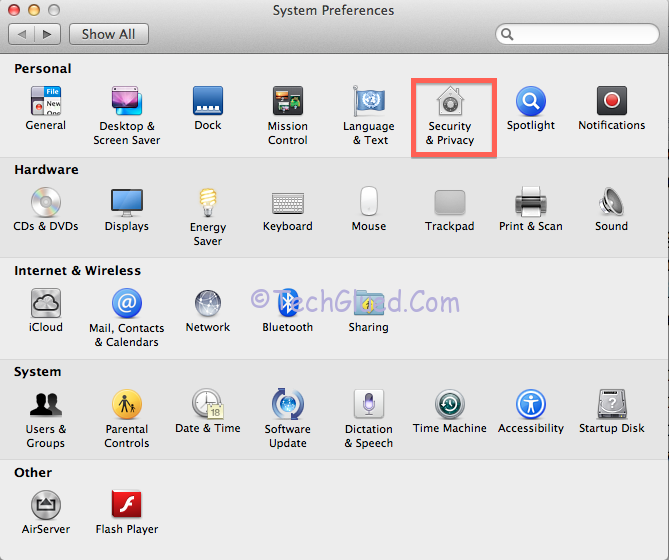
    Open up your Settings.App in MAC. Then go into Security and Privacy.

    gatekeeper-os-x-mountain-lion

    Step 2:

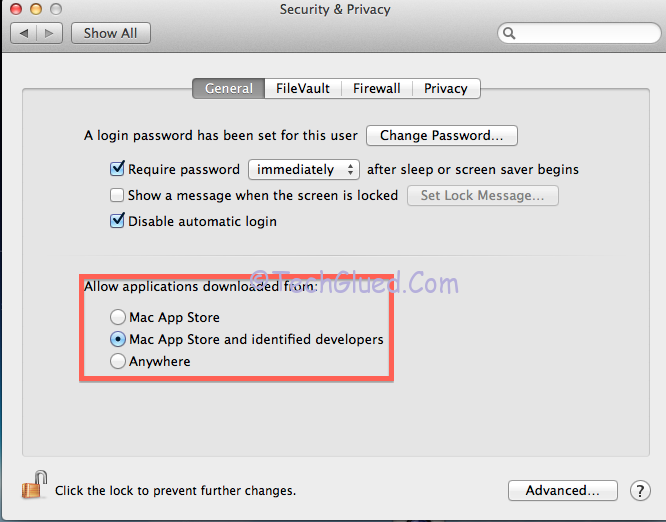
    Now here you will see three options below.

    MAC App Store Only

    MAC App Store and Identified Developer

    Anywhere

    The Second Option is checked by Default.

    os-x-security
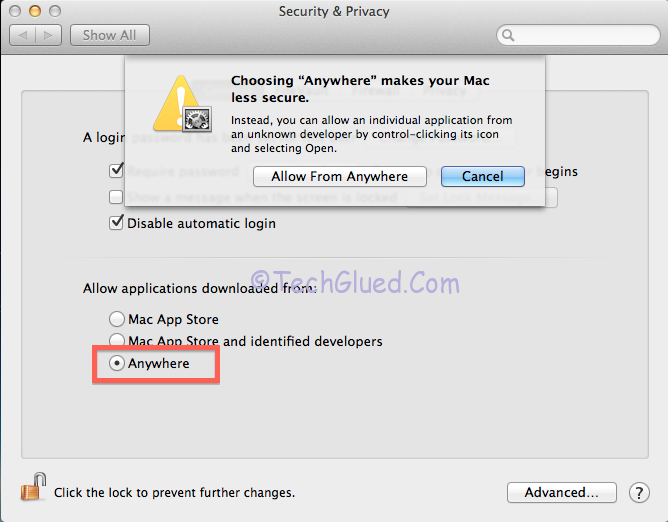
    To Run third party Apps, simply select Anywhere.

    Step 3:

    When you will select Anywhere, it will prompt you with a Warning stating to change the option or not. Go for change.

    anywhere-os-x-mountain-lion

    Once done, Close the settings and re run the Application that was not working.

    If the Application still doesn’t works, the Application needs to be updated to work with OS X Mountain Lion.

    Do let u know if you succeeded. We would love to hear your feedback.

  • How to Activate Find My Mobile on Samsung Galaxy S III

    How to Activate Find My Mobile on Samsung Galaxy S III

    The first ever smart phone designed for Humans and inspired by nature, Samsung Galaxy S III debuted about a month or two ago. The release of this Samsung Galaxy S III isn’t completed yet. Yet, there are some countries where Samsung’s Galaxy S III will be releasing in near future. Fortunately, we got our hands on the Samsung Galaxy S III soon after few days of the release. We were excited to have something that has just been announced officially. The Samsung Galaxy S III might be a great competition to Apple because they have added NFC Technology in it and some more great features that we have personally tested. We haven’t tested NFC because we don’t have this service yet at our place.

    Anyhow, we have come across a feature that every one owning an expensive Phone needs to have with it. The same goes for Apple’s iPhone. It is also present in them. The feature is no other feature than Find My Phone in Samsung and Find My iPhone for Apple. This is technically a service provided by Samsung and Apple for their Devices. Many other companies might be providing this service for their Devices, but we are only aware with these two well renowned companies. This service allows the owner of the Device to get the location of his lost/stolen Mobile with the help of GPS System integrated in the Phones. This service simply works by making an account on the respective webs and hooking up your Device with your account. Once done, you are secured.

    When we got our hands on Samsung Galaxy S III, we were looking for this service in it. We did found out this service, but were unable to activate it. We made an account on Samsung, signed up for this service, and we were unable to turn the service on. However, our GPS and everything was on. So today, we figured out the way to enable this feature on our Samsung Galaxy S III. We thought to share with you people so that you can also activate it easily without any hustle.

    The first thing you need to have is the Samsung Galaxy S III. Second, you need to have an account on Samsungdive web or an account made for Samsung Store. Third, you need to be signed into service from your Phone.

    After you have met all the requirements, follow the steps below to activate this service on your Phone.

    Step 1:

    Grab up your Samsung Galaxy S III and navigate to this location.

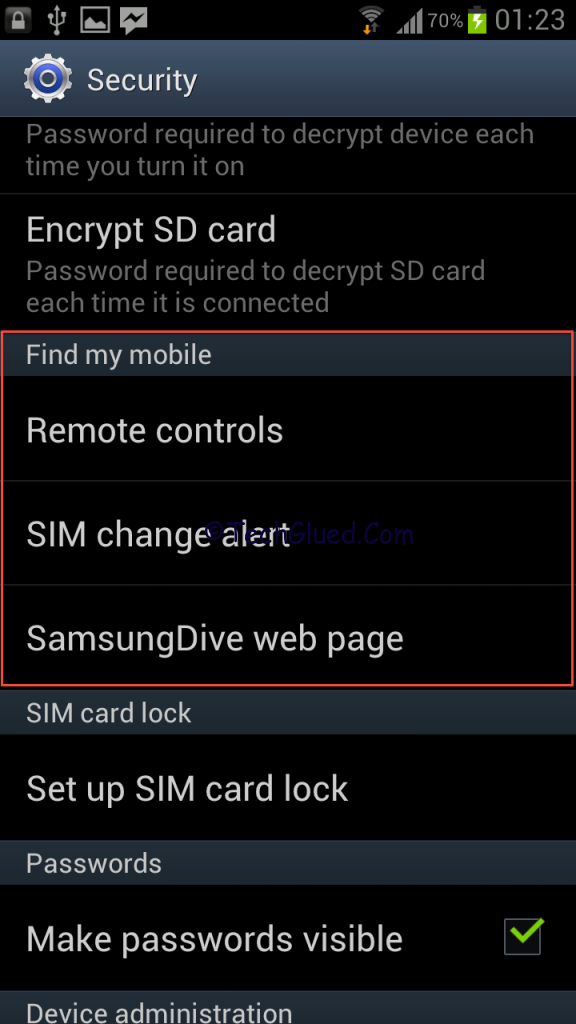
    Settings> Security> Find My Mobile

    find-my-mobile-samsung

    Step 2:

    Over there, you will see an option of Remote Control, SIM Change Alert, and SamsungDive Page.

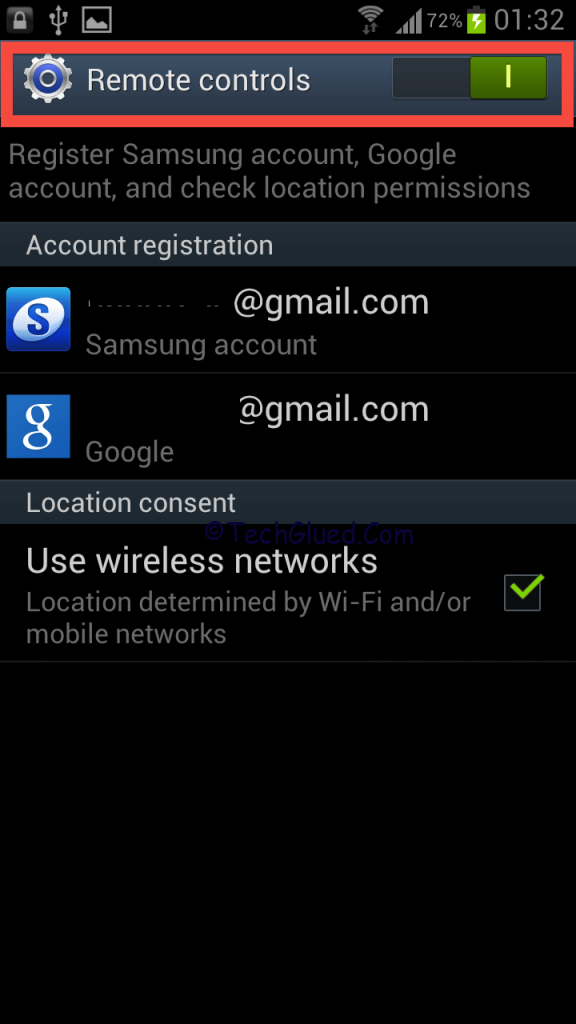
    You need to go into remote control option and make sure that you are signed in the account and the enable option is not workable, means you cannot enable or disable it. Don’t worry.

    remote-control-samsung-s-3

    Step 3:

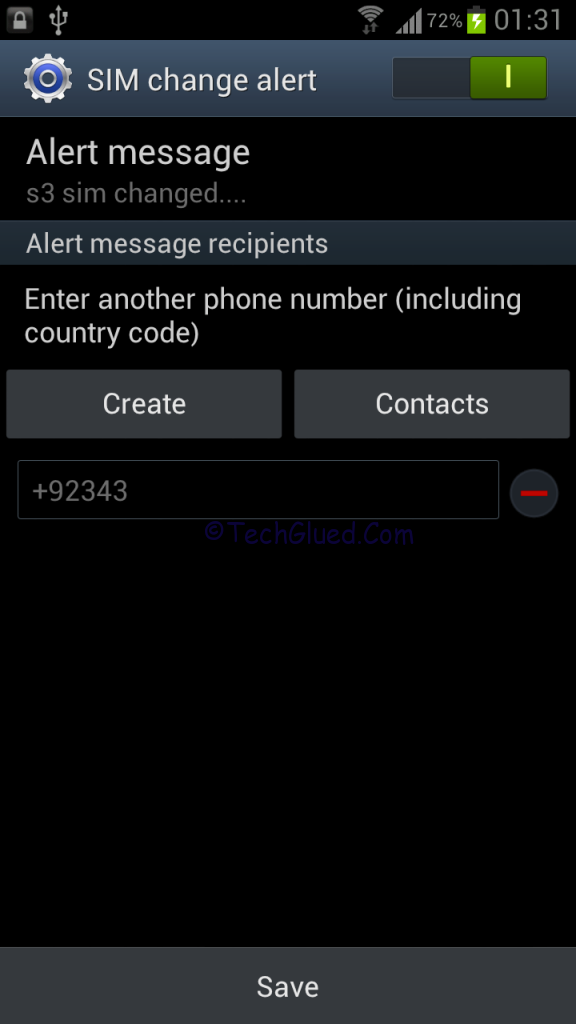
    Now go back and go into second option of SIM Change Alert. Now in this option, it will say you to enable the service and add the number of the person whom you would like to notify about the changes made to the SIM.

    find-my-phone-sms

    Now enter in the number. Once done, go back to Remote Controls and activate it.

    In no time the Remote Control, option would be enabled. Once you have activated the REMOTE CONTROL feature, there is so much that you can do with it. All you need to do this just head over to samsungdive page and enter in with your ID and PASS.

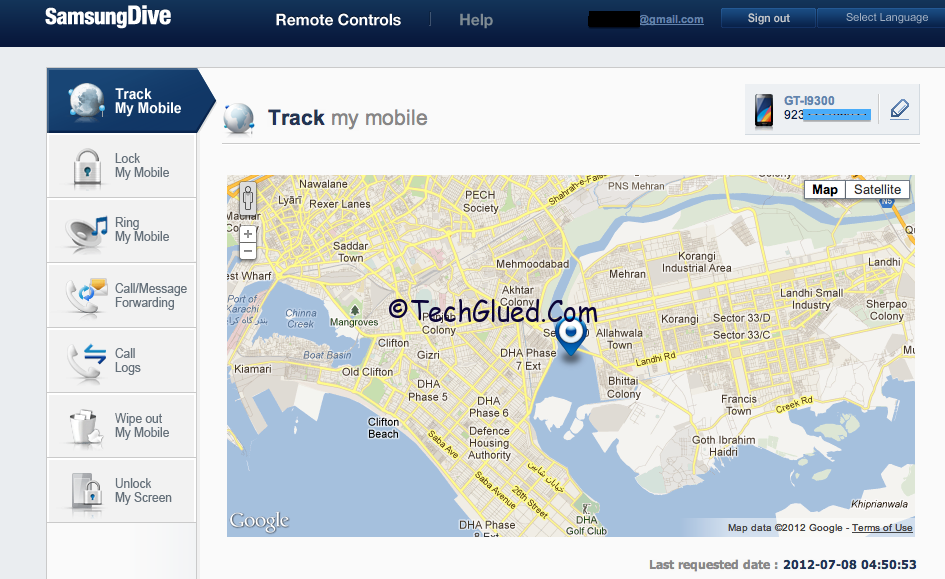
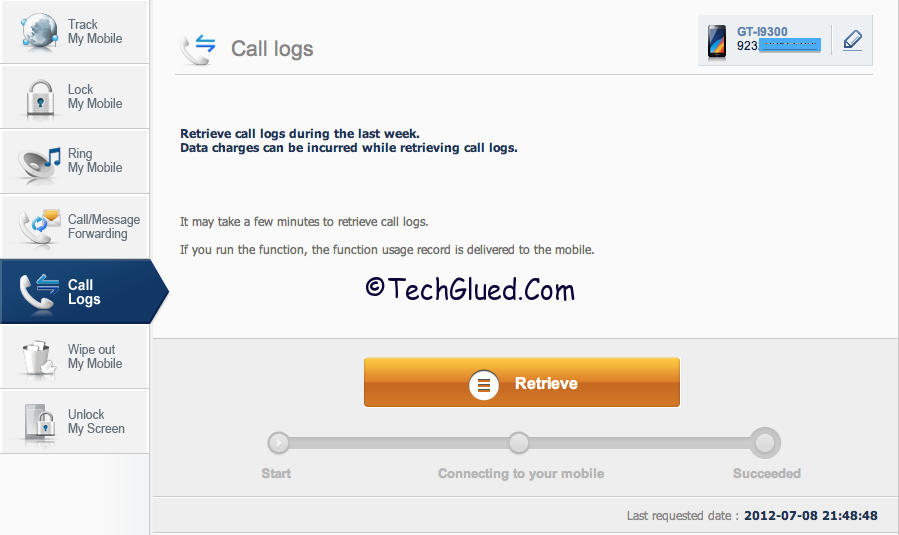
    Once you are in, you can avail all the awesome features that are present there. You can backup your recent call log, set up a pass-code on the screen with the message, beep your Phone and find it. Other than this you can track your Phone with interval of 15 minutes in 24-hours. Here is the demo of the interface of the samsungdive with it’s features.

    find-my-phone-s3-location

    call-log-s3

    Once you have activated this Remote Control Feature, there is so much that you can avail.

    Personally, if we compare the service of Samsung with the service of Apple’s Find My iPhone, the Samsung’s Service is better in features and service than Apple. We would love to hear your comments on this service.

  • How To Fix Most Common Errors While Restoring/Updating iDevices

    How To Fix Most Common Errors While Restoring/Updating iDevices

    When we talk about iPhone/iPod/iPad updating officially or Un-officially, we assume that it is a piece of cake.  The job is as easy as an ABC. Sometimes the task is as easy as an ABC and sometimes the task becomes a p.i.a for the users because iTunes popup’s a screen showing a dangerous word called “Error” 3194,1,2,20, and so on. This word Error is the worst nightmare for the people willing to perform a restore. This is the point from which they open up Google and start the search. They approximately waste their hours in searching for a solution and again hours in performing the solution.

    Some lucky users get bypassed the error and some are stuck on the error for days trying to see if they can get some ones help. The days turn out to months and months into years. They are still searching for the solution of those errors. That is not good.

    So we thought to come up with a perfect solution of the most common errors that a normal person faces during updating/restoring iPhone/iPod/iPad. We have made some great list of errors that every one of you faces once or more than once while doing the procedure. The errors are not new; they are the same old errors. The solution is new for those errors. The solution has been tested 100% by us and used in the same situations.

    Lets start with the first and amazing error that you people face while updating/restoring iPad/iPod/iPhone.

    “Error 3194”

    This is the Error that every one hates and faces while he is restoring/updating his iDevice to latest iOS or previous one.

    Why this Error Occurs?

    This error of 3149 occurs because you got an IP of 74.208.105.171 gs.apple.com and 127.gs.apple.com located in your hosts file. This IP prevents you from updating/restoring your iDevice.

    Solution:

    For Windows:

    Navigate to C:/Windows/System 32/Drivers/ETC/Hosts. Over there you will see a file of HOSTS. Open that with Notepad in Admin Mode or you can go to that location by opening notepad in Admin Mode.

    After you are in that file, simply delete the above stated IP Address with a # in its beginning.

    After you have deleted the IP, simply save the file and restart your computer.

    Now restore and it would work perfectly.

    For MAC:

    Open Terminal then type in /private/etc/hosts.

    Now delete the same IP Address stated above.

    Restart your MAC and then try again.

    “Error 1600”

    Why this error occurs?

    This error occurs while you are trying to restore to a custom IPSW and you are not using iReb to put your iDevice into DFU Mode.

    Solution:

    Use iReb to bypass this error. iReb will put your iDevice into PWNED DFU Mode.

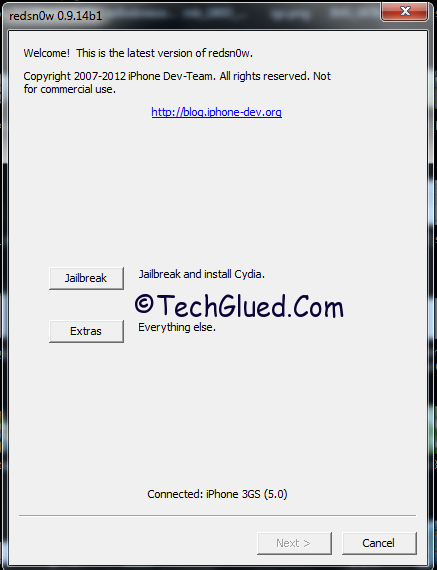
    For people using MAC OS X, simply open up Redsn0w, go into extras menu and use PWNED DFU MODE.

    Now try the restore, it will work.

    “Error 1604”

    Why this Error Occurs?

    The iDevices was not entered into PWNED DFU Mode.

    Solution:

    Enter the iDevice into PWNED Mode and try again.

    “Error 21”

    This is the Error that screwed my life for hours. You might be the same victim of this error. This error comes very rarely, but when this error comes, it blows out because there is no perfect solution for this error. If you onto search for this error, they you need an iDevice replacement. Every one having an iPhone/iPod/iPad cannot do this thing.

    Why this error occurs?

    As per my experience this error occurs due to a hardware fault on your iPhone mostly. I only sawed this error on an iPhone so far. I don’t know if this occurs on iPod/iPad also.

    Solution:

    In my case the error 21 was occurring due to battery problem on an iPhone 4. The battery was semi dead. I changed the battery and the iPhone worked flawlessly.

    If you face this error on your iPhone/iPod/iPad while restoring to any IPSW, kindly consider a battery replacement or get your hardware checked.

    “Error 1015,1016”

    Why this Error Occurs?

    This error usually occurs due to a recovery loop on your iPhone/iPod/iPad. The device is stuck in recovery mode after a restore.

    Solution:

    To fix problem you got 3 alternatives

    1. Use iReb
    2. TinyUmbrella
    3. Redsn0w

    In iReb there is an option of Recovery Boot Fix. You can use that. If that doesn’t works, you can use Tiny Umbrella to kick your Device out of Recovery Mode. This usually works.

    If these all fail to work then you got Redsn0w. First of all download Redsn0w latest version. Open it; go into Extras and over there you will see Recovery Fix. Follow the steps and it will work.

    If all the steps fail to work, you can use my custom technique.

    Open up Redsn0w, place your iDevice into DFU Mode and do a Tethered Boot. This method also works.

    “Error 11”

    Why This Error Occurs?

    This error usually occurs when you are trying to restore to a CUSTOM IPSW or Normal IPSW in DFU Mode.

    Solution:

    To by pass this error make sure that you don’t have the GS.APPLE ip installed in the hosts file. If you got the IP in the hosts file, kindly remove it. Then use the PWNED DFU mode to restore your iPhone to a CUSTOM IPSW made by Sn0wbreeze or Redsn0w. This should work for you.

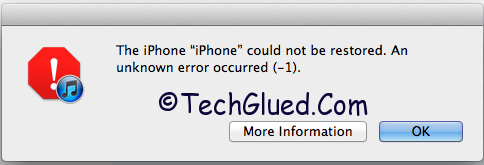
    “Error -1”

    Why This Error Occurs?

    This error usually occurs because you are using an Old method for the baseband preservation.

    Solution:

    The baseband isn’t updated after this error occurs. Simply use Tiny Umbrella and kick out of recovery. This should work for you.

    The guide is not completed yet. We will be updating the guide from time to time. We would appreciate if you can spare some time to tell us about the error code that you are facing while updating or restoring. We are making this post sticky, so every one can view it easily. Feel free to comment below with your Error Codes.

    ERROR! Please perform a clean “slide to power off” and try again.

    Why This Error Occurs?

    This Error occurs on iphone 3GS while downgrading iPad Baseband. You don’t need to worry about this error.

    Solution:

    This error occurs while downgrading the iPad Baseband because you insert the iPhone into DFU Mode before the process begins normally. This means you don’t need to put the iPhone into DFU Mode manually before the steps start.

    To solve this issue, manually turn off the iPhone 3GS and then proceed next for the DFU Mode and follow the steps to insert your iPhone into DFU Mode. Atfer you have followed the steps, simly try again the procedure for the iPad Baseband Downgrade. This time it should be done without any hustle.


  • How to Get Cydia on iOS 6b1 After Tethered Jailbreak 0n A4 Devices

    How to Get Cydia on iOS 6b1 After Tethered Jailbreak 0n A4 Devices

    We got some hot news in the town for the developers who are on iOS 6b1 and wanted to have Cydia on their iPhone/iPod. But, due to the broken status of Cydia on iOS 6b1, they couldn’t have Cydia after the official Tethered Jailbreak for iOS 6b1 announced few days back by The iPhone Dev-Team. The Jailbreak is only for Developers who want to update their Apps on iOS 6. The Jailbreak doesn’t add Cydia on your Device, though it adds SSH Support on your iDevice by which you can access the Root and do your works. It also adds afc2d support that allows your iPhone/iPod to connect to root by software’s like iFunbox or Cyberduck for MAC.

    cydia-ios-6-b1-download

    Still there is no way by which a normal person can access to iOS 6beta 1 without a Dev Account. You can register your UDID and then can access iOS 6beta 1. We would recommend staying away from iOS 6 betas because they are way to buggy and not stable. On the other hand, we got a method for developers who are on iOS 6 beta 1 to install Cydia on their iPhone/iPod. Do remember that Cydia is not stable on iOS 6 beta 1 and you might face problems after installing it. Rest is up to you.

    If you are ready for Cydia fund on your iPhone/iPod, simply first Jailbreak your iPhone/iPod with this guide and then follow the steps below.

    Step 1:

    Connect to SSH

    Step 2:

    Copy and run the following command (the whole thing, you may need to scroll):  wget -q -O /tmp/cyinstall.sh http://wyndrepo.googlecode.com/files/cyinstall.sh && chmod 755 /tmp/cyinstall.sh && /tmp/cyinstall.sh

    Step 3:

    If you do not see cydia, power off and reboot tethered.

    Note: I think uicache is broken which means some icons will disappear; just respring after installing something. (Method Courtesy @Andrew Liu)

    @Tam Nguyen and @Hamza_tariq showing the proof of Cydia running on their iPhone and iPod tested this method. Do remember that this method requires some SSH Skills. If you don’t know about it, then don’t do it.

    Below is the video proof of Cydia on iOS 6b1 by @Tam Nguyen.

    Video:

    Do share your experience with us about Cydia on iOS 6b1. Do let us know about how many of you have succeeded installing Cydia on iOS 6b1.

  • How to Fix No Signal Issue After Downgrading iPad Baseband 6.15.00

    How to Fix No Signal Issue After Downgrading iPad Baseband 6.15.00

    Today people owning an iPhone 3GS/3G got the downgraded method that was rumored from long. This downgrade method was confirmed to come somewhere back in 2010. After full two years of this rumor, today we got the iPad baseband downgrade in works. The iPad baseband downgrade is for 6.15.00 to 5.13.02 baseband to retain your official Unlock via Ultrasn0w and get back your GPS working. Every one must be happy in downgrading their Baseband from 6.15.00 to 5.13.02 and they must be facing some issues after the downgrade. Few people, not every one, face the issue of No Signal issue on their iPhone 3GS/3G after the iPad baseband Downgrade.

    Those of you are facing the issue should not worry about this issue because it is normal and you need to do few things in Cydia to resolve this issue. The things that you need to do are not pre-requisite of technical skills, though it only requires some basic knowledge of adding and removing Packages from Cydia.  We assume that every one must know about this thing for sure. If you don’t know about this removing of Cydia Packages, then don’t worry. We got it covered for you.

    Now follow the steps told by @MuscleNerd to fix the issue:

    Step 1:

    Open Cydia and go to Manage> Packages

    Step 2:

    Once you are in that place, see for Mobile Substrate or Ultrasn0w.

    Step 3:

    Now uninstall Ultrasn0w first and then re-install it. The issue must be fixed.

    Step 4:

    If the issue still remains, then un-install Mobile Substrate and re-install it.

    These steps should fix your no signal issue after downgrading the iPad baseband. If you want any help regarding the iPad baseband downgrade, feel free to contact us from our contact us section and an expert will help you with your issue.